How do I set up a firebase account?
Purpose
This guide will walk you through creating and setting up a Firebase account to enable push notifications for your mobile apps via Firebase Cloud Messaging (FCM). Memorang uses Firebase in conjunction with OneSignal to deliver real-time notifications on Android. Completing this setup is required to enable push notification functionality in your app.
Steps
Create an account at https://firebase.google.com/
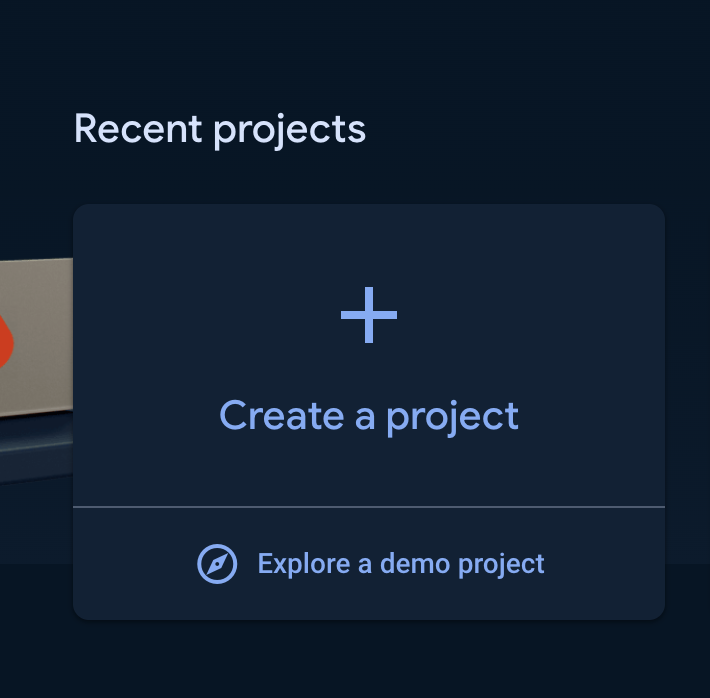
Go to https://console.firebase.google.com/ and click on create a project
Name your project and click "Continue".
Click "Continue" again on the next screen.
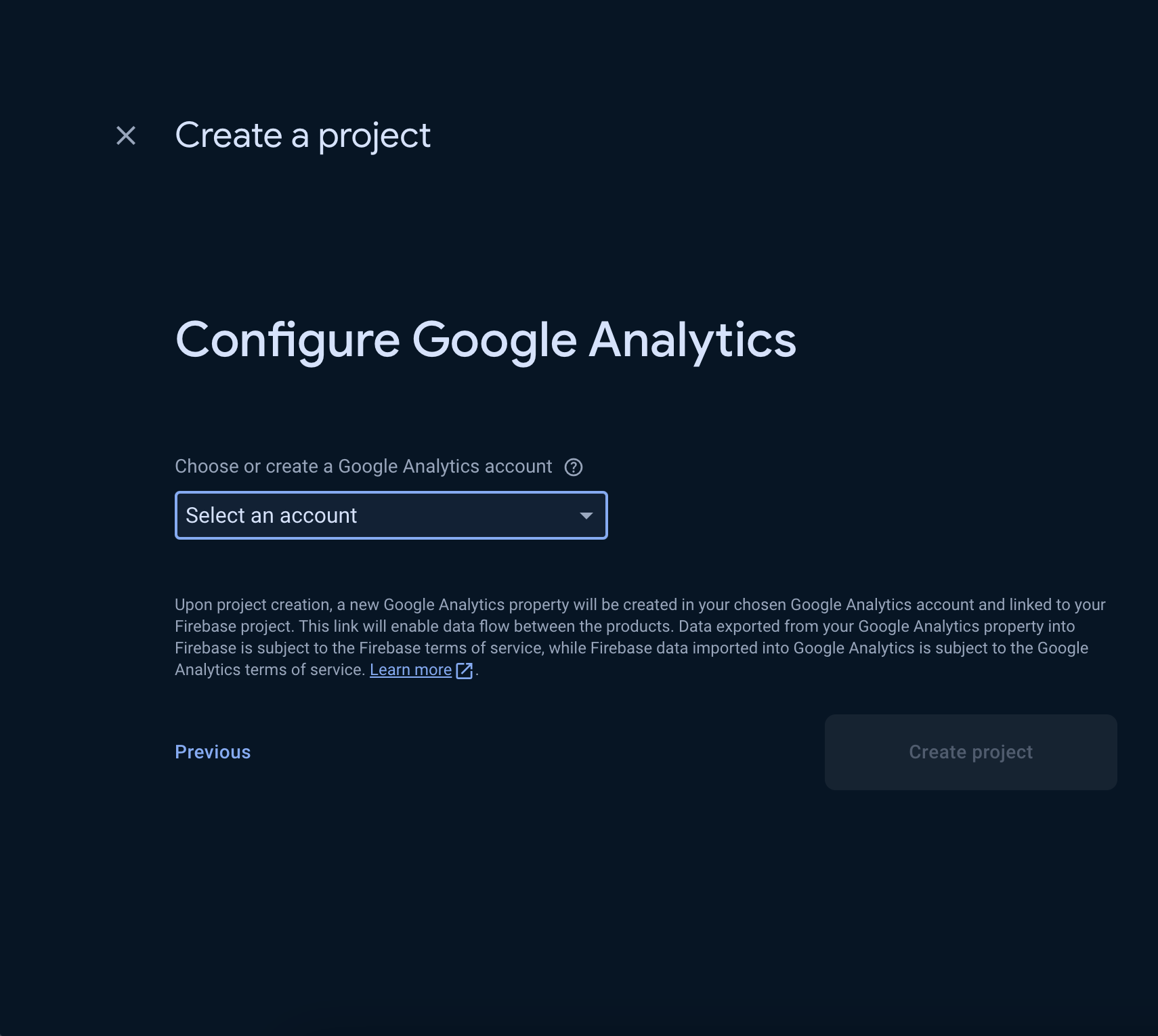
Click on "Select an account," choose the appropriate account, and then click "Create project."
After the project is created, click "Continue".
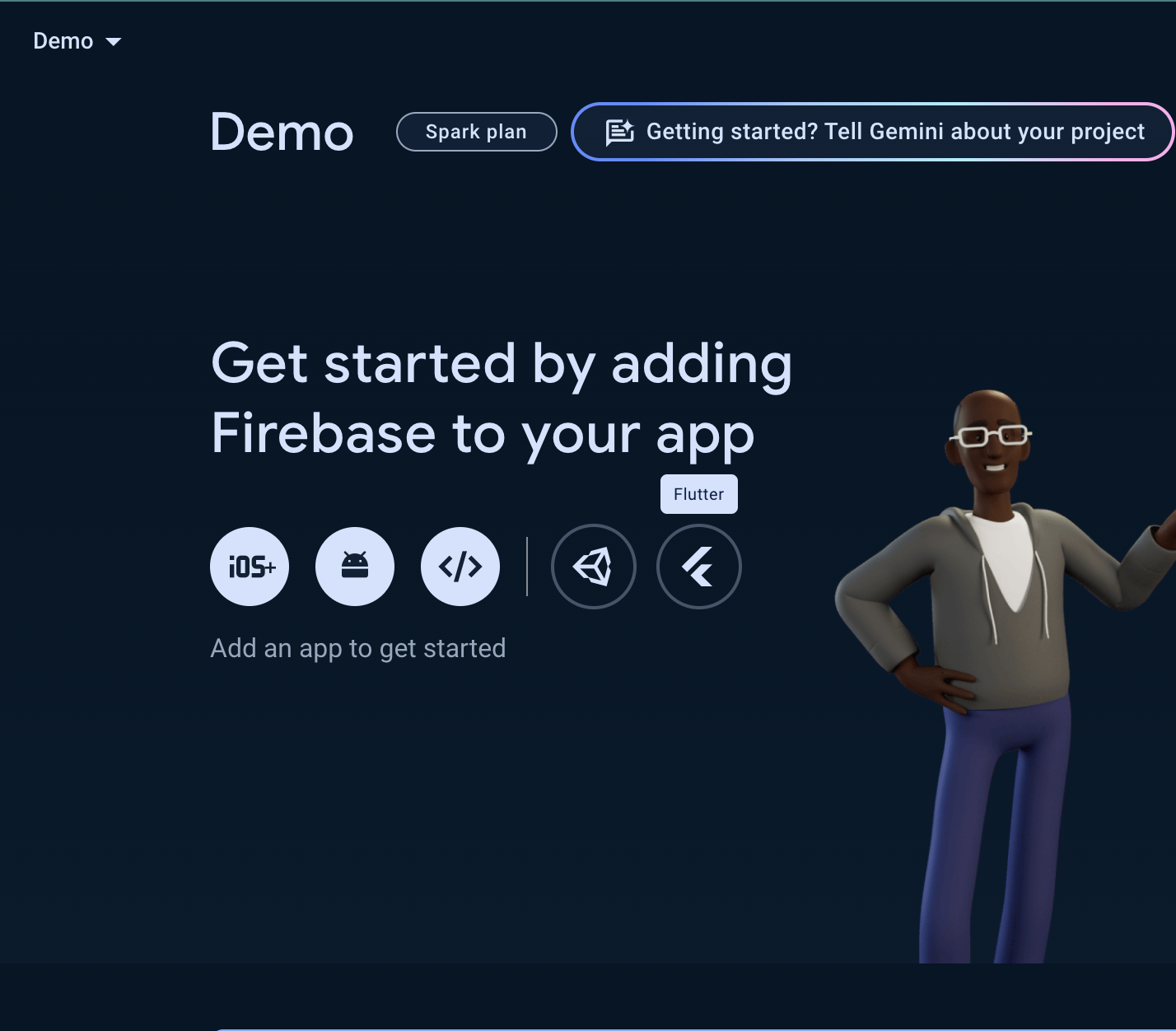
Click on the Android icon to create a Firebase Android app
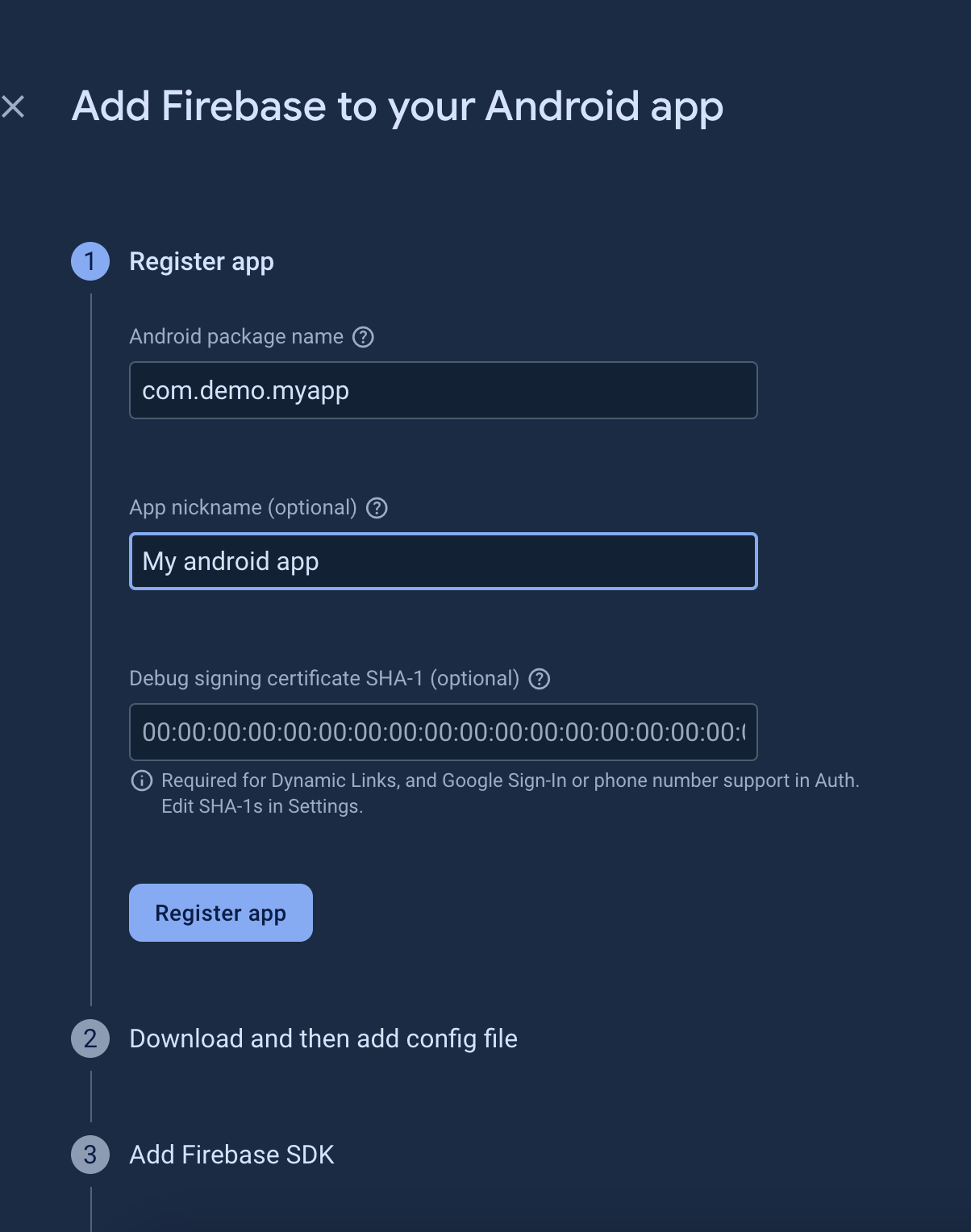
Enter the package name (the one you used when setting up the Google Play Store) and an optional app name
Click on register app
Download the google-services.json file
Click on next
Click on continue to console
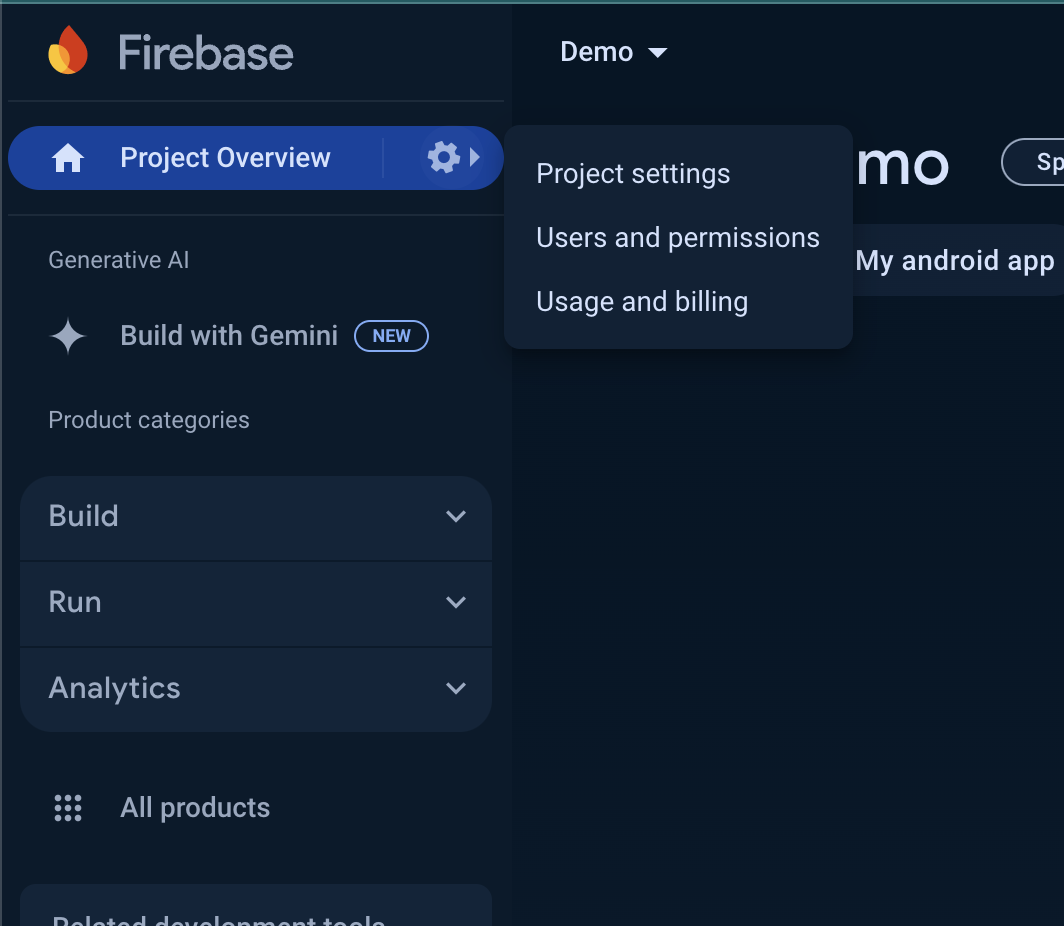
Click on the settings icon in the top-left corner of the left drawer
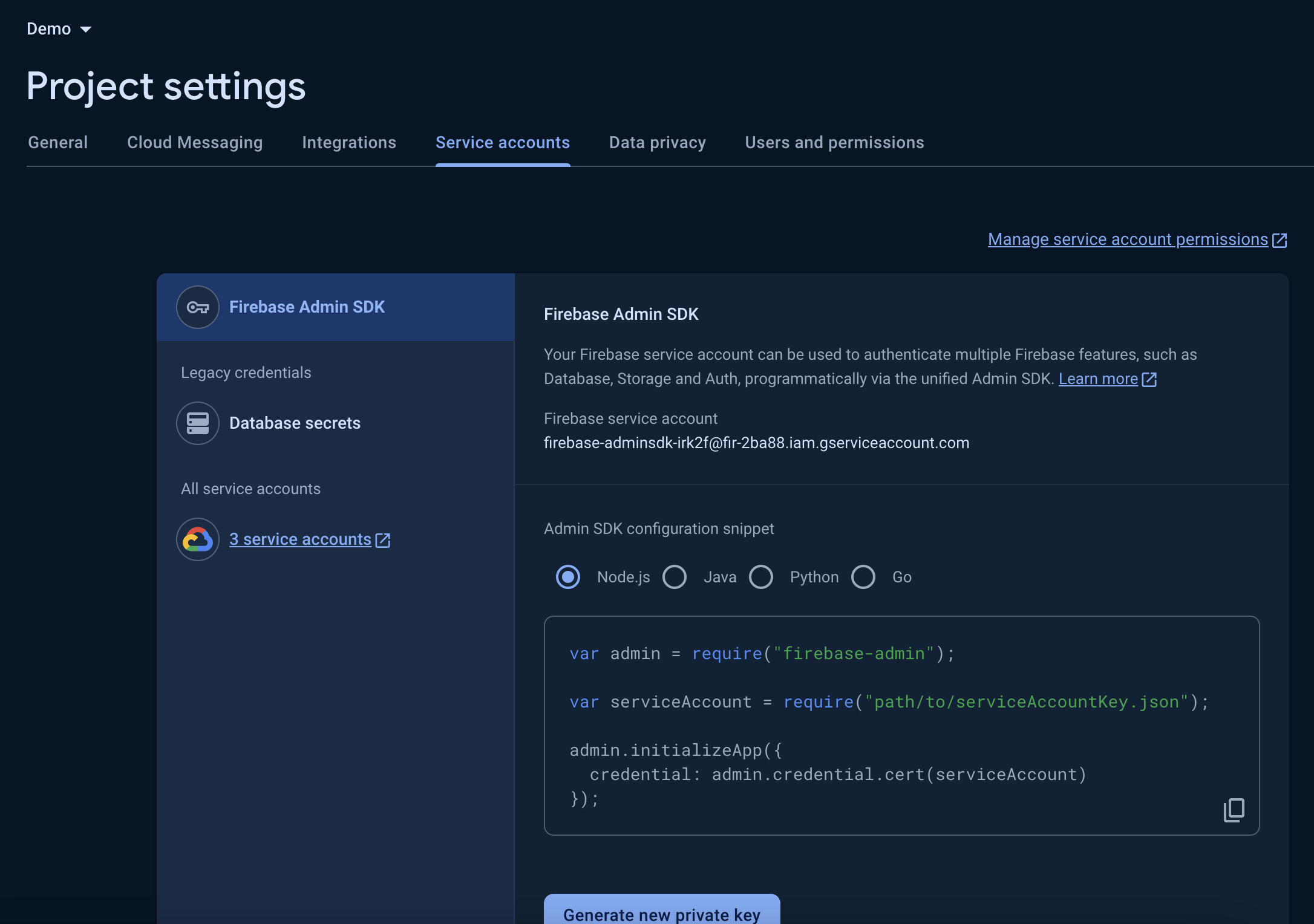
Click on service accounts
Click on "Generate new private key" and then click "Generate key" in the dialog box that appears.
Download the JSON file and save it for later use to set up OneSignal