How do I set up an iOS app in OneSignal?
Purpose
This guide explains how to set up your iOS app in OneSignal to enable push notifications and messaging automation in your Memorang-powered mobile app. By completing this setup, you’ll be able to send real-time notifications to iOS users through OneSignal, including onboarding messages, retention campaigns, and other customer communication flows.
Steps: Setting up an IOS app
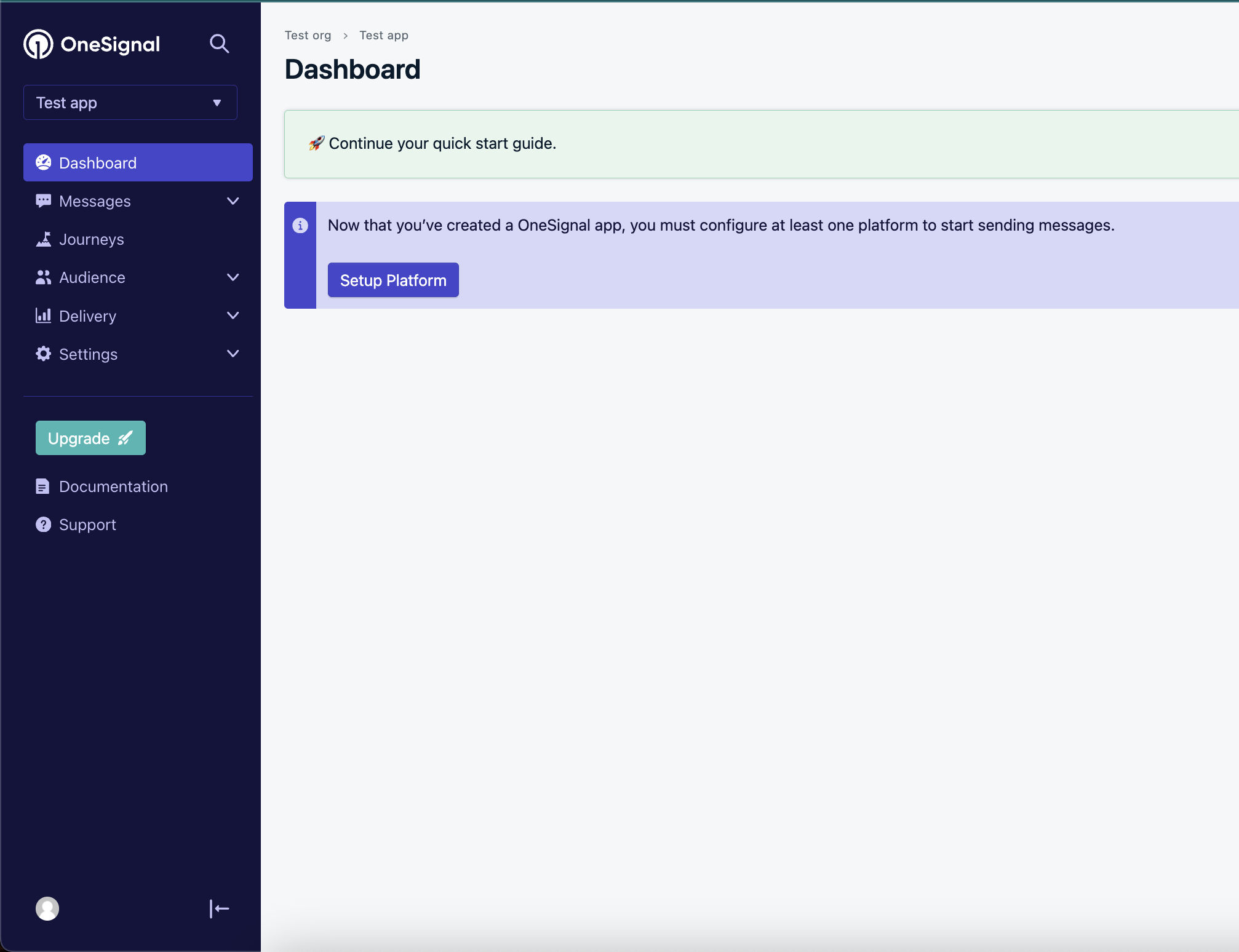
Select "Set up platform" in the Dashboard.
For the .p8 file and the key ID, refer to this guide.
Upload the .p8 file obtained from the above.
Paste the key ID obtained from the above.
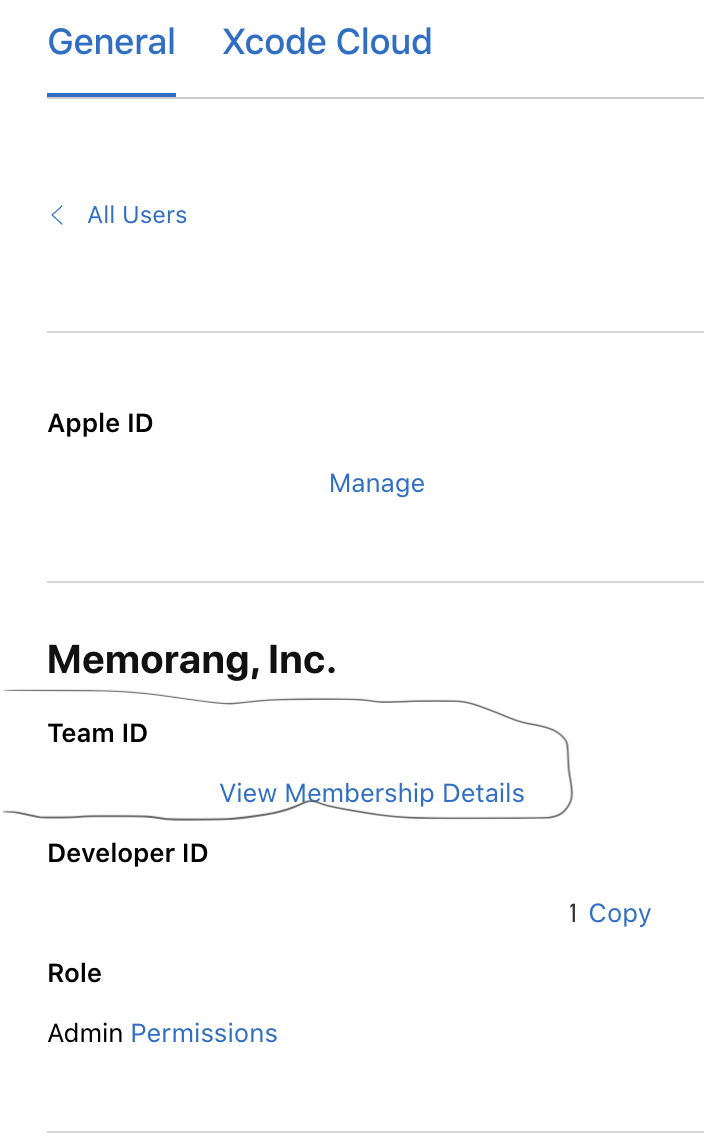
Go to App Store Connect and expand the profile menu from the top right.
Select "Edit Profile," copy the team ID below the organization name as seen in the screenshot.
Go back to the OneSignal setup screen and paste the team ID.
Copy and paste the bundle ID which you have registered following this guide.
Hit save and continue.
Select react native / expo in the next screen
Hit save and continue